개발새발 블로그

[CSS] 요소 배치 스타일

컴퓨터/CSS
<!DOCTYPE html>
<html lang="en">
<head>
    <meta charset="UTF-8">
    <meta name="viewport" content="width=device-width, initial-scale=1.0">
    <title>요소 배치 스타일</title>
</head>
<body>
    <!--
        블럭요소 : 한줄로 영역을 차지하는 요소
        인라인 요소 : content부분만 영역을 차지하는 요소

        * 요소영역 : content영역 + padding영역 + border영역
        * 요소 바깥쪽 영역 : margin영역
    -->
    <h1>요소 배치 스타일</h1>

    <h3>width, height</h3>

    <p>
        기본적으로 내용을 차지하는 content영역의 가로, 세로 길이 조절
    </p>

    <h4>고정크기(px)</h4>
    <div id="test1" class="size-test"></div>

    <h4>가변크기(%)</h4>
    <div id="test2" class="size-test"></div>

    <!---------------------- style ------------------------->
    <style>
        .size-test {
            border: 10px solid red
        }
        #test1 {
            width: 400px;
            height: 200px;
        }
        #test2 {
            width: 50%;
            height: 150px;
        }
    </style>

    <hr>

    <h1>display : 화면 배치 방법 변경</h1>

    <pre>
        선택자 {
            display:inline|block|inline-block
        }
    </pre>

    <h3>* display:inline</h3>

    <div class="display-test inline red">첫번째</div>
    <div class="display-test inline yellow">두번째</div>
    <div class="display-test inline pink">세번째</div>
    <div class="display-test inline green">네번째</div>
    <div class="display-test inline purple">다섯번째</div>
    <p><b>
        display:inline만 하게 되면 width와 height의 스타일 속성은 적용되지 않음
    </b></p>
    <br><br>

    <h3>* display:inline-block</h3>
    <div class="display-test inline-block red">첫번째</div>
    <div class="display-test inline-block yellow">두번째</div>
    <div class="display-test inline-block pink">세번째</div>
    <div class="display-test inline-block green">네번째</div>
    <div class="display-test inline-block purple">다섯번째</div>
    <br><br>
    
    <h3>* display:block</h3>
    <span class="display-test block red">첫번째</span>
    <span class="display-test block yellow">두번째</span>
    <span class="display-test block pink">세번째</span>
    <span class="display-test block green">네번째</span>
    <span class="display-test block purple">다섯번째</span>


    <!---------------------- style ------------------------->
    <style>
        .display-test {
            border: 1px solid;
            width: 150px;
            height: 150px;
        }
        .red {background-color: red;}
        .yellow {background-color: yellow;}
        .pink {background-color: pink;}
        .green {background-color: green;}
        .purple {background-color: purple;}

        .inline {display: inline;}

        .inline-block {display: inline-block;}

        .block {display: block;}
    </style>
    
</body>
</html>

'컴퓨터 > CSS' 카테고리의 다른 글

[CSS] semantic 태그  (0) 2024.06.30
[CSS] 배치 관련 스타일  (0) 2024.06.30
[CSS] 배경 관련 스타일  (0) 2024.06.30
[CSS] 테이블 연습 문제  (0) 2024.06.30
[CSS] 테이블 관련 스타일  (0) 2024.06.30

[CSS] 배경 관련 스타일

컴퓨터/CSS

<HTML>

<!DOCTYPE html>
<html lang="en">
<head>
    <meta charset="UTF-8">
    <meta name="viewport" content="width=device-width, initial-scale=1.0">
    <link href="resources/css/11.style.css" rel="stylesheet">
    <title>배경 관련 스타일</title>
</head>
<body>
    <h1>배경 관련 스타일(background~ )</h1>

    <h3>background-color : 배경색을 지정하고자 할 때</h3>

    <div id="div-bg">
        Lorem ipsum dolor sit amet consectetur adipisicing elit. Fugit necessitatibus atque perferendis deleniti magni doloremque fugiat pariatur commodi repellat incidunt dolores illum ipsam minima doloribus, asperiores eveniet nisi nesciunt quis.
        Non laborum nulla incidunt adipisci. Soluta nihil nulla facere magni deserunt sint et, iusto obcaecati error odit. Laboriosam maxime maiores eum nobis non, ducimus beatae quibusdam ratione, in aliquid natus?
        Excepturi cum placeat amet maxime, voluptate eveniet obcaecati ullam quisquam ipsam culpa totam temporibus dolores qui, praesentium quasi explicabo adipisci, magnam pariatur earum necessitatibus facere repellat! Tempore eos iure necessitatibus.
    </div>

    <hr>

    <h3>background-clip : 배경을 적용시키고자 하는 범위 지정할 때 사용</h3>

    <pre>
        선택자 {
            backaground-clip:border-box(기본값)|padding-box|content-box
        }
    </pre>

    <div class="div-test" id="div1">Lorem ipsum, dolor sit amet consectetur adipisicing elit. Ipsa, at deleniti. Ut nobis voluptas voluptate rerum. Magnam blanditiis, minima odit aliquid modi quae, fugiat est voluptate repellat sit doloribus at.</div>
    <div class="div-test" id="div2">Repudiandae molestias pariatur suscipit omnis quis quasi, perspiciatis mollitia, ipsa, ea natus asperiores saepe? Accusamus aut voluptate ea at. Doloremque dicta dolor sint, beatae ipsam ratione modi veniam similique impedit?</div>
    <div class="div-test" id="div3">Ipsa iure excepturi similique accusantium modi quaerat unde porro repudiandae. At ex et praesentium numquam vitae placeat labore quo sapiente nisi vero, in officiis fugiat neque error distinctio aperiam eos?</div>

    <hr>

    <h3>배경 이미지 넣기</h3>
    <pre>
        선택자 {
            background-image:url("이미지경로");
            background-repeat:repeat|repeat-x|repeat-y|no-repeat;
            background-size:auto|contain|cover|px px|% %;
            background-position:좌/우/가운데  위/아래/가운데|px px|% %;
            backgroung-attachment:scroll|fixed;
        }
    </pre>

    <div id="bg-img"></div>
</body>
</html>


<CSS>

body {
    background-color: cadetblue;
    background-color: rgba(95,158,160,0.3);
}
#div-bg {
    background-color: white;
    padding: 20px;
    border: 1px solid rgb(49, 85, 86);
    width: 50%;
}
.div-test {
    margin: 30px;
    background-color: yellowgreen;
    border: 10px dashed;
    padding: 20px;
}
#div1 {background-clip: border-box;}
#div2 {background-clip: padding-box;}
#div3 {background-clip: content-box;}

#bg-img {
    border: 1px solid;
    width: 70%;
    height: 800px;

    background-image: url("../img/img1.png");
    background-repeat: no-repeat;
    /*     
    background-repeat: repeat-y;
    background-repeat: repeat-x; 
    */
    background-size: auto;      /* 기본값 원래 이미지 사이즈*/
    background-size: contain;   /* 해당 요소안에 이미지가 모두 보이게 */
    background-size: cover;     /* 해당 요소안에 이미지가 가득 차게 */
    background-size: 300px;     /* 가로길이(세로는 원래이미지의 비율에 맞춰) */
    background-size: 300px 300px;   /* 가로길이 세로길이 */
    background-size: 30%;
    background-size: 50% 50%;
    background-size: auto;

    background-position: left top; /* 기본값 */
    background-position: center bottom;
    background-position: center center;
    background-position: 20% 30%;
    background-position: 50% 50%;

    background-attachment: scroll; /* 기본값 */
    background-attachment: fixed;  /* 이미지 고정 */
}


'컴퓨터 > CSS' 카테고리의 다른 글

[CSS] 배치 관련 스타일  (0) 2024.06.30
[CSS] 요소 배치 스타일  (0) 2024.06.30
[CSS] 테이블 연습 문제  (0) 2024.06.30
[CSS] 테이블 관련 스타일  (0) 2024.06.30
[CSS] 테두리 관련 스타일  (0) 2024.06.30

[CSS] 테이블 연습 문제

컴퓨터/CSS
<!DOCTYPE html>
<html lang="en">
<head>
    <meta charset="UTF-8">
    <meta name="viewport" content="width=device-width, initial-scale=1.0">
    <title>지원 블로그 식단표</title>
    <style>
        table {
            border:2px solid rgb(51, 0, 147);
            border-collapse: collapse;
            width: 700px;
            table-layout: fixed;
        }
        th, td {
            width:100px;
            height: 40px;
            border: 1px dotted rgb(0, 124, 135);
            text-align: center;
            background-color: rgb(244, 239, 168);
        }
        th {
            border-bottom:2px solid rgb(51, 0, 147);
            background-color:  rgb(213, 203, 55);
        }
        caption {
            font-size: 20px;
            font-weight: bold;
            margin-bottom: 10px;
        }
    </style>
</head>
<body>
    <table>
        <caption>지원 블로그 식단표</caption>
        <tr>
            <th>월</th>
            <th>화</th>
            <th>수</th>
            <th>목</th>
            <th>금</th>
            <th>토</th>
            <th>일</th>
        </tr>
            <td colspan="2">쌀밥</td>
            <td colspan="3">잡곡밥</td>
            <td>스파게티</td>
            <td>짜장면</td>
        <tr>
            <td>불고기</td>
            <td>떡갈비</td>
            <td>미니돈까스</td>
            <td>오징어볶음</td>
            <td>제육볶음</td>
            <td rowspan="2">피클</td>
            <td>단무지</td>
        </tr>
        <tr>
            <td>배추김치</td>
            <td>깍두기</td>
            <td>미소된장국</td>
            <td>동치미</td>
            <td>고추절임</td>
            <td>짬뽕국물</td>
        </tr>
    </table>

</body>
</html>

'컴퓨터 > CSS' 카테고리의 다른 글

[CSS] 요소 배치 스타일  (0) 2024.06.30
[CSS] 배경 관련 스타일  (0) 2024.06.30
[CSS] 테이블 관련 스타일  (0) 2024.06.30
[CSS] 테두리 관련 스타일  (0) 2024.06.30
[CSS] 영역 관련 스타일  (0) 2024.06.27

[CSS] 테이블 관련 스타일

컴퓨터/CSS
<!DOCTYPE html>
<html lang="en">
<head>
    <meta charset="UTF-8">
    <meta name="viewport" content="width=device-width, initial-scale=1.0">
    <title>테이블 관련 스타일</title>
    <style>
        table {
            border: 1px solid;
            border-collapse: collapse;  /* 기본값:separate 표테두리와 셀테두리 분리하기,합치기 */
            border-spacing: 10px; /* 표 테두리와 셀 테두리의 간격 */
            width: 450px;
            /* 테이블의 길이 고정 */
            table-layout: fixed;
        }
        thead, tfoot {
            background-color:rgb(140, 169, 148);
        }
        tbody {
            background-color: beige;
        }
        th, td {
            width: 150px;
            height: 30px;
            padding: 5px;
            text-align: center;
            vertical-align: middle; /* 테이블에서만 사용가능 top|middle(기본값)|bottom */
            border: 1px dotted;

            /* 글자의 공백이 없어도 중간에 끊이서 내림 */
            word-break: break-all;
        }
        .borderTop {
            border-top: 2px double red;
        }
    </style>
</head>
<body>
    <h1>테이블 관련 스타일</h1>
    <table>
        <caption>[표 1] 웹 브라우저의 종류</caption>
        <thead>
            <tr>
                <th>브라우저명</th>
                <th>제조사</th>
                <!-- <th>홈페이지</th> -->
                <th>HomepageHomepageHomepageHomepageHomepageHomepageHomepageHomepageHomepageHomepageHomepageHomepageHomepageHomepageHomepageHomepage</th>
            </tr>
        </thead>
        <tbody>
            <tr>
                <td>Edge</td>
                <td>MS</td>
                <td>https://microsoft.com</td>
            </tr>
            <tr>
                <td>Chrome</td>
                <td>Google</td>
                <td>https://google.com</td>
            </tr>
            <tr>
                <td>Safari</td>
                <td>Apple</td>
                <td>https://apple.com</td>
            </tr>
        </tbody>
        <tfoot>
            <tr>
                <td colspan="2" class="borderTop">총 브라우저 수</td>
                <td class="borderTop">3</td>
            </tr>
        </tfoot>
    </table>
</body>
</html>

'컴퓨터 > CSS' 카테고리의 다른 글

[CSS] 배경 관련 스타일  (0) 2024.06.30
[CSS] 테이블 연습 문제  (0) 2024.06.30
[CSS] 테두리 관련 스타일  (0) 2024.06.30
[CSS] 영역 관련 스타일  (0) 2024.06.27
[CSS] 목록 관련 스타일  (0) 2024.06.27

[CSS] 테두리 관련 스타일

컴퓨터/CSS
<!DOCTYPE html>
<html lang="en">
<head>
    <meta charset="UTF-8">
    <meta name="viewport" content="width=device-width, initial-scale=1.0">
    <title>테두리 관련 스타일</title>
</head>
<body>
    <h1>테두리 관련 스타일</h1>
    <pre>
        선택자 {
            * 테두리 스타일
            border[-위치]-style:none|dotted|dashed|solid|double|groove|ridge|inset|outset

            * 테두리 두께
            border[-위치]-width: 테두리 두께;

            * 테두리 색상
            border[-위치]-color: 테두리 색상;

            * 테두리 스타일, 두께, 색상을 한꺼번에
            border: 두께 스타일 [색상];

            * 테두리 모서리를 둥그렇게
            border-radius: 반지름값;

            * 박스에 그림자 효과
            box-shadow: 가로거리(x) 세로거리(y) 흐림정도 번짐정도 색상;
        }
    </pre>

    <div id="test1">test1</div>
    <div id="test2">test2</div>
    <div id="test3">test3</div>
    <div id="test4">test4</div>
    <div id="test5">test5</div>
    <div id="test6">test6</div>
    <div id="test7">test7</div>
    <div id="test8">test8</div>
    <div id="test9">test9</div>
    <div id="test10">test10</div>

    <button id="btn">로그인</button>&emsp;
    <input type="submit" id="inputBtn" value="로그인">

    <!----------------------style-------------------->
    <style>
        div{
            width: 90px;
            height: 90px;
            border-width: 3px;
            margin: 10px;
            padding: 10px;
            background-color: rgb(109, 184, 184);
        }
        #test1 {
            border-style: dotted;
            border-top-width: 10px;
        }
        #test2 {
            box-shadow: 5px 5px 10px 5px gray;
        }
        #test3 {
            /* border-top-style: solid; */
            border-style: dashed double solid dotted;
        }
        #test4 {
            border-style: dashed;
            border-left-color: blueviolet;
        }
        #test5 {
            border-style: groove;
            border-width: 10px;
        }
        #test6 {
            border-style: ridge;
            border-width: 10px;
        }
        #test7 {
            border-style: outset;
            border-width: 10px;
        }
        #test8 {
            border-style: inset;
            border-width: 10px;
        }
        #test9 {
            border-style: solid;
            /* 
            border-radius: 20px;
            border-top-left-radius: 40px;
             */
            border-radius: 10px 30px 20px;
        }
        #test10 {
            border:10px dotted pink;
        }

        #btn, #inputBtn {
            border:none;
            padding: 10px 20px;
            border-radius: 10px;
            background-color: rgb(27, 109, 133);
            color: white;
        }
        #btn:hover, #inputBtn:hover {
            background-color: rgb(244, 131, 248);
        }
    </style>
</body>
</html>

'컴퓨터 > CSS' 카테고리의 다른 글

[CSS] 테이블 연습 문제  (0) 2024.06.30
[CSS] 테이블 관련 스타일  (0) 2024.06.30
[CSS] 영역 관련 스타일  (0) 2024.06.27
[CSS] 목록 관련 스타일  (0) 2024.06.27
[CSS] 텍스트 관련 스타일  (0) 2024.06.27

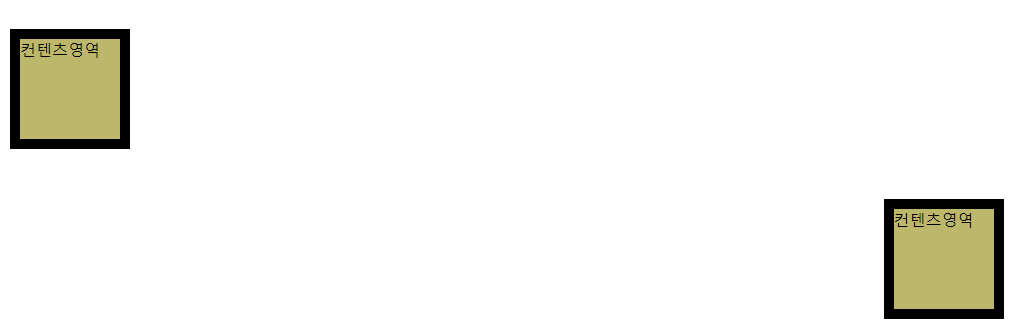
[CSS] 영역 관련 스타일

컴퓨터/CSS
<!DOCTYPE html>
<html lang="en">
<head>
    <meta charset="UTF-8">
    <meta name="viewport" content="width=device-width, initial-scale=1.0">
    <title>영역 관련 스타일</title>
    <style>
        .test {
            width: 100px;
            height: 100px;
            background-color: darkkhaki;
            border: 10px solid;
        }
    </style>
</head>
<body>
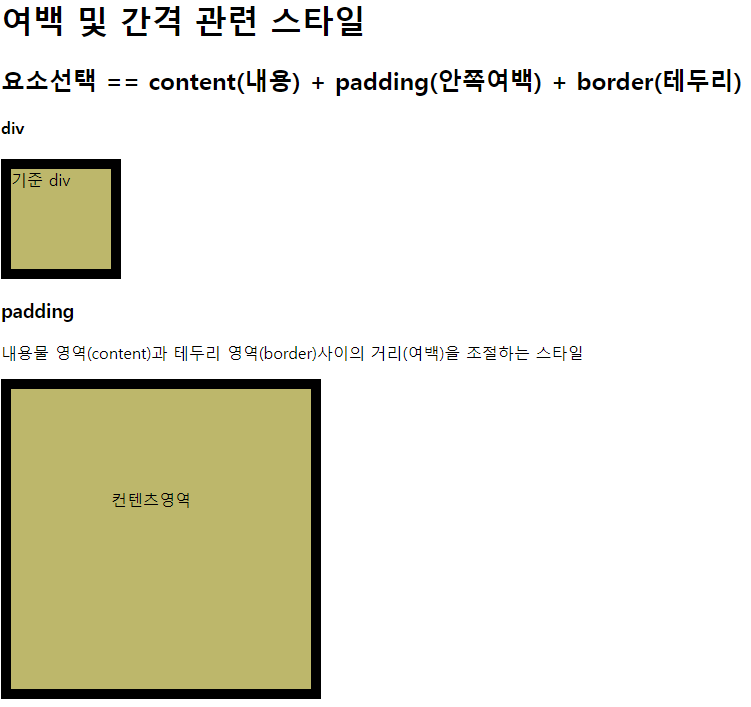
    <h1>여백 및  간격 관련 스타일</h1>

    <h2>요소선택 == content(내용) + padding(안쪽여백) + border(테두리)</h2>

    <h4>div</h4>
    <div class="test">기준 div</div>

    <h3>padding</h3>
    <p>
        내용물 영역(content)과 테두리 영역(border)사이의 거리(여백)을 조절하는 스타일
    </p>

    <div class="test" id="test1">컨텐츠영역</div><br>
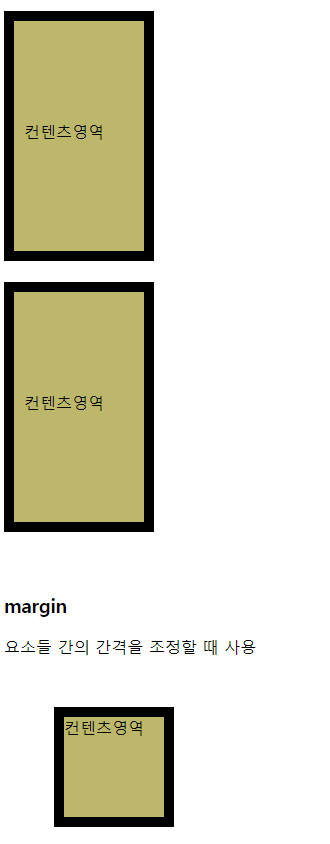
    <div class="test" id="test2">컨텐츠영역</div><br>
    <div class="test" id="test3">컨텐츠영역</div>

    <!----------------------------------- style ----------------------------------->
    <style>
    #test1 {
        padding: 100px;     /* 모든 여백 */
    }
    #test2 {
        padding-top: 100px;
        padding-right: 20px;
        padding-bottom: 30px;
        padding-left: 10px;
    }
    #test3 {
        padding: 20px 50px;                     /* 위 아래(20px), 좌우(50px) */
        padding: 20px 50px 100px;               /* 위(20px), 아래(100px), 좌우(50px) */
        padding: 100px 20px 30px 10px;          /* test2와 똑같음. 위에서부터 시계방향으로 돌아감 */
    }
    </style>
    <br><br>

    <h3>margin</h3>
    <p>
        요소들 간의 간격을 조정할 때 사용
    </p>

    <div class="test" id="test4">컨텐츠영역</div>
    <div class="test" id="test5">컨텐츠영역</div>
    <div class="test" id="test6">컨텐츠영역</div>

    <!----------------------------------- style ----------------------------------->
    <style>
        #test4 {
            margin: 50px;
        }
        #test5 {
            margin-top: 30px;
            margin-bottom: 50px;
            margin-left: 10px;
        }
        #test6 {
            margin: 30px 50px 80px 100px;
            margin: auto;                       /* 좌우를 기준으로 창의 가운데 배치 */
        }
    </style>
</body>
</html>


'컴퓨터 > CSS' 카테고리의 다른 글

[CSS] 테이블 관련 스타일  (0) 2024.06.30
[CSS] 테두리 관련 스타일  (0) 2024.06.30
[CSS] 목록 관련 스타일  (0) 2024.06.27
[CSS] 텍스트 관련 스타일  (0) 2024.06.27
[CSS] 글꼴 관련 스타일  (0) 2024.06.27

[CSS] 목록 관련 스타일

컴퓨터/CSS
<!DOCTYPE html>
<html lang="en">
<head>
    <meta charset="UTF-8">
    <meta name="viewport" content="width=device-width, initial-scale=1.0">
    <title>목록 관련 스타일</title>
</head>
<body>
    <h1>목록 관련 스타일(list~ )</h1>

    <h3>list-style-type : 불릿 기호를 변경시켜줄 때 사용</h3>
    <h3>list-style-image : 불릿기호로 이미지를 적용할 때 사용</h3>
    <h3>list-style-position : 불릿기호의 위치를 조정할 때 사용</h3>
    <pre>
        * 순서가 없는 목록(ul)
        선택자 {
            list-style-type : desc(기본값) | circle | square | none
        }

        * 순서가 있는 목록(ol)
        선택자 {
            list-style-type : decimal(기본값) | decimal-leading-zero;
            list-style-type : lower-alpha | upper-alpha
            list-style-type : lower-roman | upper-roman
        }
    </pre>

    <h4>순서가 없는 목록</h4>
    <ul id="ul1">
        <li>HTML</li>
        <li>CSS</li>
        <li>JavaScript</li>
        <li>JQuary</li>
    </ul>

    <h4>순서가 있는 목록</h4>
    <ol id="ol1">
        <li>HTML</li>
        <li>CSS</li>
        <li>JavaScript</li>
        <li>JQuary</li>
    </ol>

    <style>
        #ul1 {
            list-style-type: circle;
            list-style-type: square;
            list-style-type: none;
            list-style-image: url(resources/img/star.png);
        }

        #ol1 {
            list-style-type: decimal-leading-zero;
            list-style-type: upper-alpha;
            list-style-type: upper-roman;
            list-style-position: inside;            /* outside(기본값) */
        }
    </style>
</body>
</html>

'컴퓨터 > CSS' 카테고리의 다른 글

[CSS] 테두리 관련 스타일  (0) 2024.06.30
[CSS] 영역 관련 스타일  (0) 2024.06.27
[CSS] 텍스트 관련 스타일  (0) 2024.06.27
[CSS] 글꼴 관련 스타일  (0) 2024.06.27
[CSS] 선택자 우선순위  (0) 2024.06.27

[CSS] 텍스트 관련 스타일

컴퓨터/CSS

<HTML>

<!DOCTYPE html>
<html lang="en">
<head>
    <meta charset="UTF-8">
    <meta name="viewport" content="width=device-width, initial-scale=1.0">
    <link href="resources/css/06.style.css" rel="stylesheet">
    <title>텍스트 관련 스타일</title>
</head>
<body>
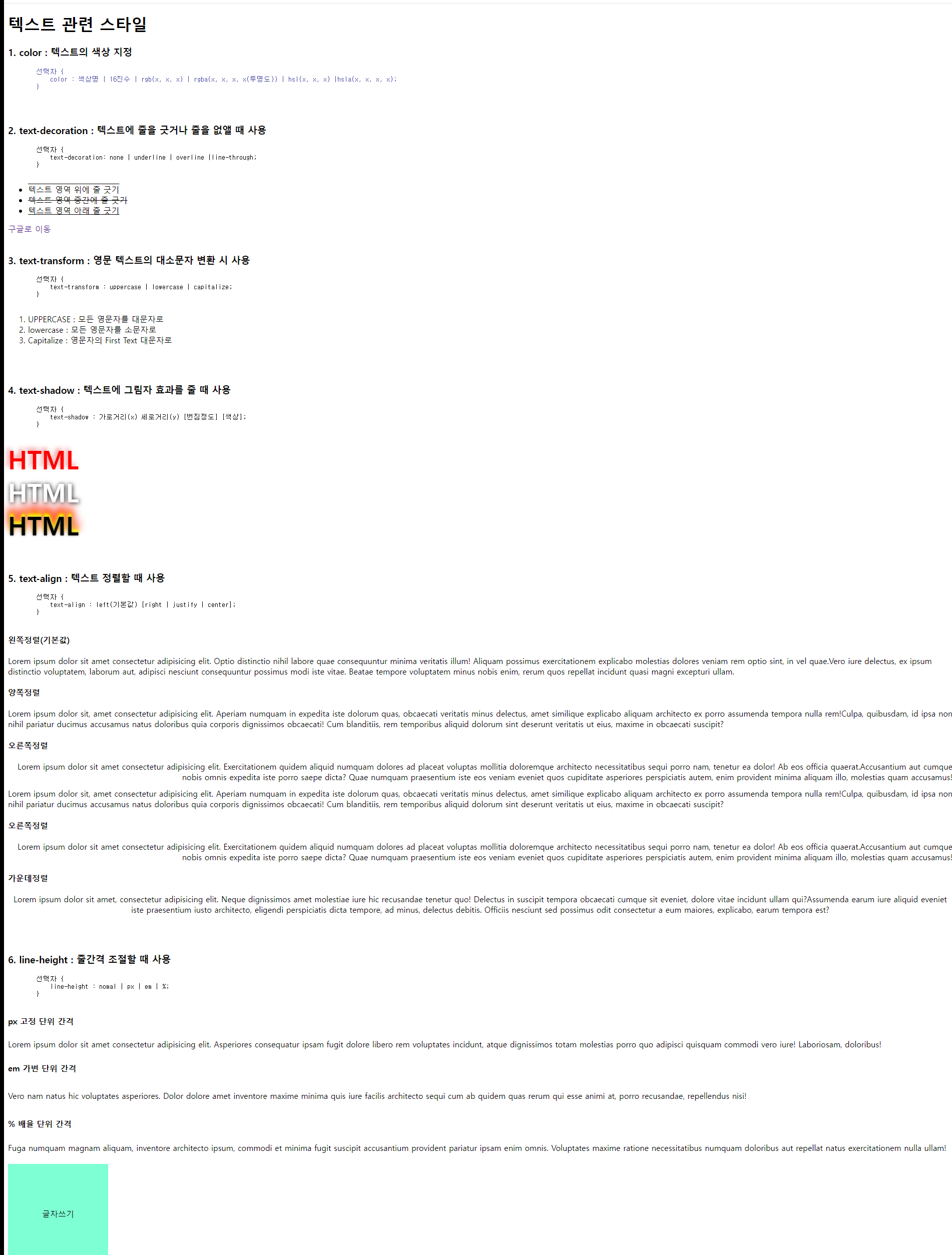
    <h1>텍스트 관련 스타일</h1>

    <h3>1. color : 텍스트의 색상 지정</h3>
    <pre id="c">
        선택자 {
            color : 색상명 | 16진수 | rgb(x, x, x) | rgba(x, x, x, x(투명도)) | hsl(x, x, x) |hsla(x, x, x, x);
        }
    </pre>
    <br>

    <h3>2. text-decoration : 텍스트에 줄을 긋거나 줄을 없앨 때 사용</h3>
    <pre>
        선택자 {
            text-decoration: none | underline | overline |line-through;
        }
    </pre>

    <ul>
        <li id="td1">텍스트 영역 위에 줄 긋기</li>
        <li id="td2">텍스트 영역 중간에 줄 긋기</li>
        <li id="td3">텍스트 영역 아래 줄 긋기</li>
    </ul>

    <a href="http://google.com" target="_blank" id="td4">구글로 이동</a>
    <br><br>

    <h3>3. text-transform : 영문 텍스트의 대소문자 변환 시 사용</h3>
    <pre>
        선택자 {
            text-transform : uppercase | lowercase | capitalize;
        }
    </pre>

    <ol>
        <li id="tt1">uppercase : 모든 영문자를 대문자로</li>
        <li id="tt2">LOWERCASE : 모든 영문자를 소문자로</li>
        <li id="tt3">capitalize : 영문자의 first text 대문자로</li>
    </ol>
    <br><br>

    <h3>4. text-shadow : 텍스트에 그림자 효과를 줄 때 사용</h3>
    <pre>
        선택자 {
            text-shadow : 가로거리(x) 세로거리(y) [번짐정도] [색상];
        }
    </pre>

    <div>
        <span class="shadow" id="ts1">HTML</span><br>
        <span class="shadow" id="ts2">HTML</span><br>
        <span class="shadow" id="ts3">HTML</span>
    </div>
    <br><br>

    <h3>5. text-align : 텍스트 정렬할 때 사용</h3>
    <pre>
        선택자 {
            text-align : left(기본값) [right | justify | center];
        }
    </pre>

    <h4>왼쪽정렬(기본값)</h4>
        <p>Lorem ipsum dolor sit amet consectetur adipisicing elit. Optio distinctio nihil labore quae consequuntur minima veritatis illum! Aliquam possimus exercitationem explicabo molestias dolores veniam rem optio sint, in vel quae.Vero iure delectus, ex ipsum distinctio voluptatem, laborum aut, adipisci nesciunt consequuntur possimus modi iste vitae. Beatae tempore voluptatem minus nobis enim, rerum quos repellat incidunt quasi magni excepturi ullam.</p>
    
    <h4>양쪽정렬</h4>
        <p id="justify">Lorem ipsum dolor sit, amet consectetur adipisicing elit. Aperiam numquam in expedita iste dolorum quas, obcaecati veritatis minus delectus, amet similique explicabo aliquam architecto ex porro assumenda tempora nulla rem!Culpa, quibusdam, id ipsa non nihil pariatur ducimus accusamus natus doloribus quia corporis dignissimos obcaecati! Cum blanditiis, rem temporibus aliquid dolorum sint deserunt veritatis ut eius, maxime in obcaecati suscipit?</p>
    
    <h4>오른쪽정렬</h4>
        <p id="right">Lorem ipsum dolor sit amet consectetur adipisicing elit. Exercitationem quidem aliquid numquam dolores ad placeat voluptas mollitia doloremque architecto necessitatibus sequi porro nam, tenetur ea dolor! Ab eos officia quaerat.Accusantium aut cumque nobis omnis expedita iste porro saepe dicta? Quae numquam praesentium iste eos veniam eveniet quos cupiditate asperiores perspiciatis autem, enim provident minima aliquam illo, molestias quam accusamus!</p>
    
    <h4>가운데정렬</h4>
        <p id="center">Lorem ipsum dolor sit amet, consectetur adipisicing elit. Neque dignissimos amet molestiae iure hic recusandae tenetur quo! Delectus in suscipit tempora obcaecati cumque sit eveniet, dolore vitae incidunt ullam qui?Assumenda earum iure aliquid eveniet iste praesentium iusto architecto, eligendi perspiciatis dicta tempore, ad minus, delectus debitis. Officiis nesciunt sed possimus odit consectetur a eum maiores, explicabo, earum tempora est?</p>
    <br><br>

    <h3>6. line-height : 줄간격 조절할 때 사용</h3>
    <pre>
        선택자 {
            line-height : nomal | px | em | %;
        }
    </pre>

    <h4>px 고정 단위 간격</h4>
    <p id="lineH1">Lorem ipsum dolor sit amet consectetur adipisicing elit. Asperiores consequatur ipsam fugit dolore libero rem voluptates incidunt, atque dignissimos totam molestias porro quo adipisci quisquam commodi vero iure! Laboriosam, doloribus!</p>
    
    <h4>em 가변 단위 간격</h4>
    <p id="lineH2">Vero nam natus hic voluptates asperiores. Dolor dolore amet inventore maxime minima quis iure facilis architecto sequi cum ab quidem quas rerum qui esse animi at, porro recusandae, repellendus nisi!</p>
    
    <h4>% 배율 단위 간격</h4>
    <p id="lineH3">Fuga numquam magnam aliquam, inventore architecto ipsum, commodi et minima fugit suscipit accusantium provident pariatur ipsam enim omnis. Voluptates maxime ratione necessitatibus numquam doloribus aut repellat natus exercitationem nulla ullam!</p>

    <div id="test">글자쓰기</div>
</body>
</html>
 

<CSS>

/* =================== 1. color ================= */
#c {
    color: red;
    color: #B5B2FF;
    color: rgb(70, 65, 217);
    color: rgba(70, 65, 217, 0.5); /* 0 ~ 1 사이값 : 기본값은 1(불투명) */
    color: hsl(240, 50%, 50%); /* h: 색상값(0~360), s: 채도(%), l: 명도(%) */
    color: hsla(240, 50%, 40%, 0.9);
}

/* =================== 2. text-decoration ================= */
#td1 {text-decoration: overline;}
#td2 {text-decoration: line-through;}
#td3 {text-decoration: underline;}
#td4 {text-decoration: none;}

/* =================== 3. text-transform ================= */
#tt1 {text-transform: uppercase;}
#tt2 {text-transform: lowercase;}
#tt3 {text-transform: capitalize;}

/* =================== 4. text-shadow ================= */
.shadow { 
    font-size: 50px;
    font-weight: 900;
}
#ts1 {
    color: red;
    text-shadow: 5px 5px;
    text-shadow: -5px -5px 10px rgb(243, 155, 155);
}
#ts2 {
    color: white;
    text-shadow: 0 0 10px yellowgreen;
    text-shadow: 1px 1px 10px black;
}
#ts3 {
    text-shadow: 0 0 4px gray,
                 0 -5px 4px yellow,
                 0 -10px 8px orange,
                 0 -15px 15px orangered,
                 0 -20px 20px red;
}

/* =================== 5. text-align ================= */
#justify {text-align: justify;}
#right {text-align: right;}
#center {text-align: center;}

/* =================== 6. line-height ================= */
#lineH1 {line-height: 30px;}
#lineH2 {line-height: 3em;}
#lineH3 {line-height: 200%;}

#test {
    width: 200px;
    height: 200px;
    background-color: aquamarine;
    text-align: center;
    line-height: 200px;     /* 세로의 글자를 가운데로 맞출 때 많이 쓴다. */
}


'컴퓨터 > CSS' 카테고리의 다른 글

[CSS] 영역 관련 스타일  (0) 2024.06.27
[CSS] 목록 관련 스타일  (0) 2024.06.27
[CSS] 글꼴 관련 스타일  (0) 2024.06.27
[CSS] 선택자 우선순위  (0) 2024.06.27
[CSS] 기타 선택자  (2) 2024.06.27

[CSS] 글꼴 관련 스타일

컴퓨터/CSS
<!DOCTYPE html>
<html lang="en">
<head>
    <meta charset="UTF-8">
    <meta name="viewport" content="width=device-width, initial-scale=1.0">
    <link rel="preconnect" href="https://fonts.googleapis.com">
    <link rel="preconnect" href="https://fonts.gstatic.com" crossorigin>
    <link href="https://fonts.googleapis.com/css2?family=Diphylleia&family=Playfair+Display:ital,wght@0,400..900;1,400..900&family=Playwrite+NZ:wght@100..400&display=swap" rel="stylesheet">
    <title>글꼴 관련 스타일</title>
</head>
<body>
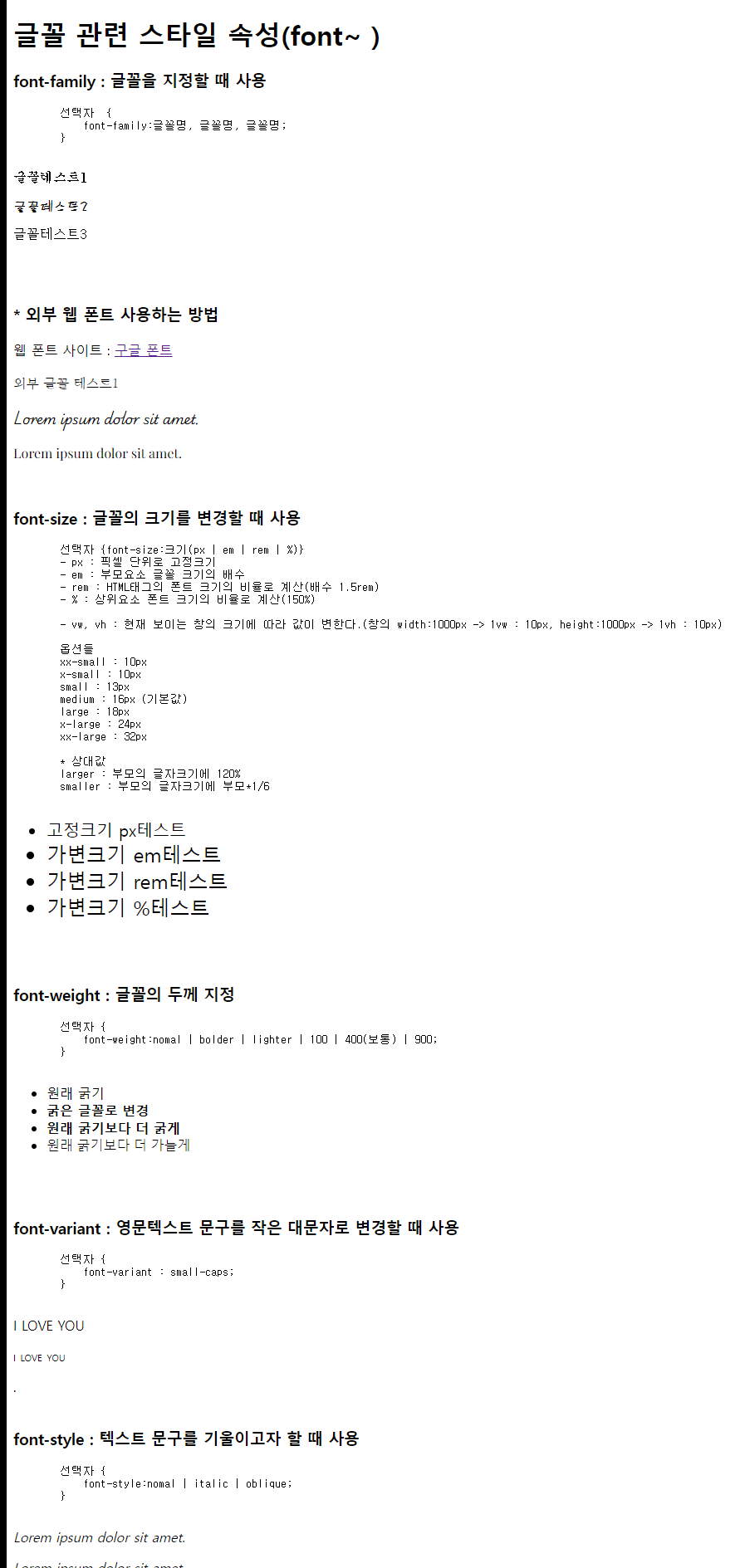
    <h1>글꼴 관련 스타일 속성(font~ )</h1>
    <h3>font-family : 글꼴을 지정할 때 사용</h3>
    <pre>
        선택자  {
            font-family:글꼴명, 글꼴명, 글꼴명;
        }
    </pre>

    <!--p#ff${글꼴테스트$}*3-->
    <p id="ff1">글꼴테스트1</p>
    <p id="ff2">글꼴테스트2</p>
    <p id="ff3">글꼴테스트3</p>
    
    <!--------------------------- style --------------------------->
    <style>
        #ff1 {font-family: 궁서체;}
        #ff2 {font-family: HYSNRL;}
        #ff3 {font-family: 바탕체, 궁서체;}
    </style>
    <br><br>

    <h3>* 외부 웹 폰트 사용하는 방법</h3>
    <p>
        웹 폰트 사이트 : <a href="https://fonts.google.com/">구글 폰트</a>
    </p>

    <p id="wf1">외부 글꼴 테스트1</p>
    <p id="wf2">Lorem ipsum dolor sit amet.</p>
    <p id="wf3">Lorem ipsum dolor sit amet.</p>
    <style>
        #wf1 {
            font-family: "Diphylleia", serif;
            font-weight: 400;
            }
        #wf2 {
            
            font-family: "Playwrite NZ", cursive;
            font-weight: 400;

        }
        #wf3 {
            font-family: "Playfair Display", serif;
            font-weight: 400;
        }

    </style>
    <br>

    <h3>font-size : 글꼴의 크기를 변경할 때 사용</h3>
    <pre>
        선택자 {font-size:크기(px | em | rem | %)}
        - px : 픽셀 단위로 고정크기
        - em : 부모요소 글꼴 크기의 배수
        - rem : HTML태그의 폰트 크기의 비율로 계산(배수 1.5rem)
        - % : 상위요소 폰트 크기의 비율로 계산(150%)

        - vw, vh : 현재 보이는 창의 크기에 따라 값이 변한다.(창의 width:1000px -> 1vw : 10px, height:1000px -> 1vh : 10px)

        옵션들
        xx-small : 10px
        x-small : 10px
        small : 13px
        medium : 16px (기본값)
        large : 18px
        x-large : 24px
        xx-large : 32px

        * 상대값
        larger : 부모의 글자크기에 120%
        smaller : 부모의 글자크기에 부모*1/6
    </pre>
    

    <ul>
        <li id="fs1">고정크기 px테스트</li>
        <li id="fs2">가변크기 em테스트</li>
        <li id="fs3">가변크기 rem테스트</li>
        <li id="fs4">가변크기 %테스트</li>
    </ul>

    <!--------------------------- style --------------------------->
    <style>
        #fs1 {font-size: 20px;}
        #fs2 {font-size: 1.5em;}        /* 원래크기에 1.5배 */
        #fs3 {font-size: 1.5rem;}
        #fs4 {font-size: 150%;}
    </style>
    <br><br>

    <h3>font-weight : 글꼴의 두께 지정</h3>
    <pre>
        선택자 {
            font-weight:nomal | bolder | lighter | 100 | 400(보통) | 900;
        }
    </pre>

    <ul>
        <li>원래 굵기</li>
        <li id="fw1">굵은 글꼴로 변경</li>
        <li id="fw2">원래 굵기보다 더 굵게</li>
        <li id="fw3">원래 굵기보다 더 가늘게</li>
    </ul>

    <!--------------------------- style --------------------------->
    <style>
        #fw1 {font-weight: bold;}       /* 700 bold만 쓴다. 나머진 잘 안쓴다.*/
        #fw2 {font-weight: 900;}        
        #fw3 {font-weight: lighter;}    /* 100 */
    </style>
    <br><br>

    <h3>font-variant : 영문텍스트 문구를 작은 대문자로 변경할 때 사용</h3>
    <pre>
        선택자 {
            font-variant : small-caps;
        }
    </pre>

    <p>I LOVE YOU</p>
    <p style="font-variant: small-caps;">i love you</p>.
    <br><br>

    <h3>font-style : 텍스트 문구를 기울이고자 할 때 사용</h3>
    <pre>
        선택자 {
            font-style:nomal | italic | oblique; <!-- italic을 더 자주 사용. oblique 차이가 거의 없다. -->
        }
    </pre>

    <p style="font-style: italic;">Lorem ipsum dolor sit amet.</p>
    <p style="font-style: oblique;">Lorem ipsum dolor sit amet.</p>
</body>
</html>


<화면>

'컴퓨터 > CSS' 카테고리의 다른 글

[CSS] 목록 관련 스타일  (0) 2024.06.27
[CSS] 텍스트 관련 스타일  (0) 2024.06.27
[CSS] 선택자 우선순위  (0) 2024.06.27
[CSS] 기타 선택자  (2) 2024.06.27
[CSS] 기본 선택자  (0) 2024.06.26

[CSS] 선택자 우선순위

컴퓨터/CSS

<HTML>

<!DOCTYPE html>
<html lang="en">
<head>
    <meta charset="UTF-8">
    <meta name="viewport" content="width=device-width, initial-scale=1.0">
    <title>선택자 우선순위</title>
    <style>
        h1 {
            background-color: aquamarine;
            color: brown;
        }
        h1 {
            background-color: beige;        /* 위에서부터 아래로 */
        }
        #id1 {
            background-color: darkolivegreen;
        }
        .class1 {
            background-color: orange;       /* 우선순위에 따라서 클래스 먼저 */
            color: white;
        }
        div {
            width: 200px;
            height: 200px;
            background-color: cadetblue !important;
            color: red;
        }
        
    </style>
</head>
<body>
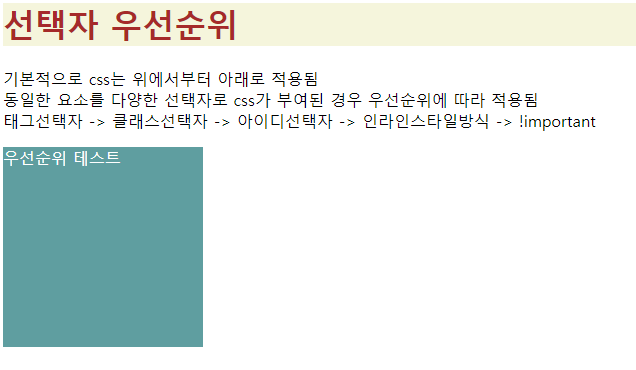
    <h1>선택자 우선순위</h1>
    <p>
        기본적으로 css는 위에서부터 아래로 적용됨<br>
        동일한 요소를 다양한 선택자로 css가 부여된 경우 우선순위에 따라 적용됨<br>
        태그선택자 -> 클래스선택자 -> 아이디선택자 -> 인라인스타일방식 -> !important
    </p>
                                        <!-- 인라인 스타일 방식 -->
    <div class="class1" id="id1" style="background-color: darkcyan;">우선순위 테스트</div>
    
</body>
</html>


<화면>

'컴퓨터 > CSS' 카테고리의 다른 글

[CSS] 텍스트 관련 스타일  (0) 2024.06.27
[CSS] 글꼴 관련 스타일  (0) 2024.06.27
[CSS] 기타 선택자  (2) 2024.06.27
[CSS] 기본 선택자  (0) 2024.06.26
[CSS] hello CSS  (0) 2024.06.26